Jdocmanual
Build a Manual
Go to the Jdocmanual Manuals page. This is the page most used for managing manuals. In a new installation there are no manuals to manage. Select the New button in the Toolbar to create a new manual.
The Manual Edit Form
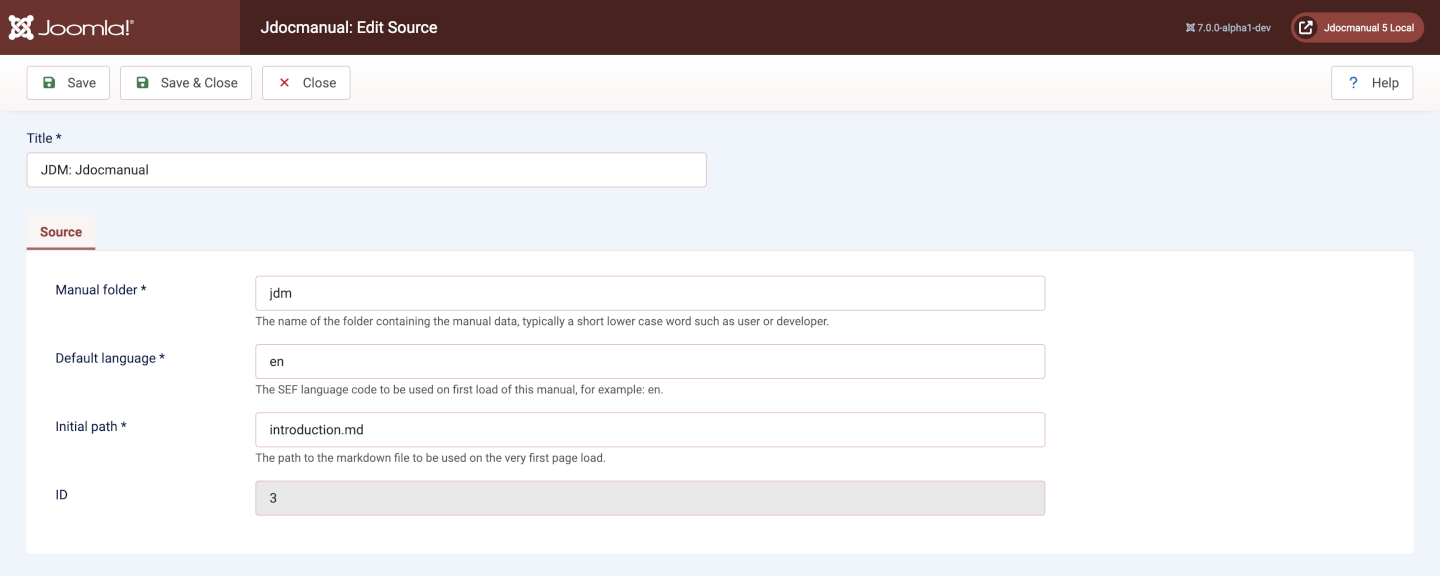
- Manual Folder: This must be the same as the folder in which you installed the repository data. It is used in URL paths so should be short and simple.
- Default Language: This is used on first visit to this manual or on a revisit after cookie expiration. Subsequent visits use a cookie to keep track of the last page visited.
- Initial Path: This is the path to article you wish to use on first entry to this manual. Subsequent visits use a cookie.
On Save & Close your Manuals page should now have a list containing at least one manual.
The Manuals List
The following screenshot shows a list of three manuals to help explain its features.
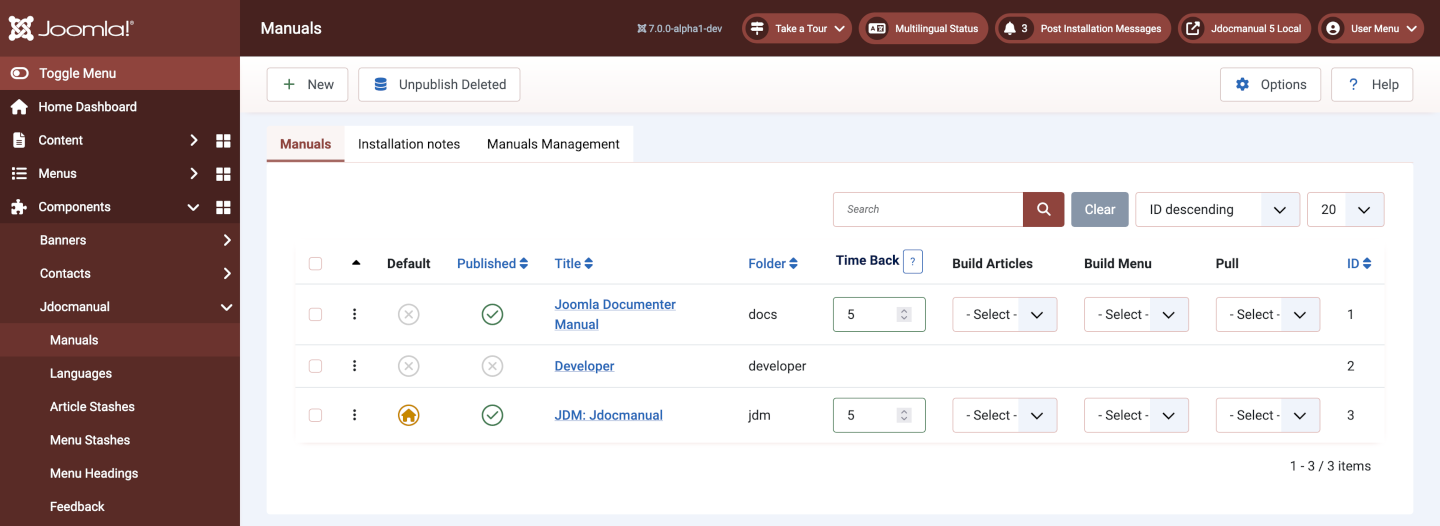
To build a manual for the first time:
- Set the Time Back value to 0. This value is a special signal to build all articles.
- Select the language to be built from the Build Articles dropdown list.
- Wait! Keep waiting!
After building the articles the process will go on to build the menu.
Explanation
Building a manual involves the following steps:
- Import the content of each article in Markdown format.
- Convert the content to HTML and save it in the database.
- Locate each image and create a set of responsive images stored in the web tree.
Some manuals consist of several hundred articles, many with several images. So building a complete manual can be time consuming. It may take many minutes for each language. Subsequently, only new or changed articles or articles with changed images are rebuilt. So the rebuild process is much quicker. That is where the Time Back setting is used. It is the number of minutes to look back for changed articles or images.
The Build Articles stage is always followed by the Build Menus stage, which is quite fast.