Jdocmanual
Data Entry in Jdocmanual
At the outset Jdocmanual was designed to handle all stages of the data flow from the markdown sources to the final presentation. So there are methods in Jdocmanual to edit articles and menus by users with different privileges. However, I decided I did not want to manage Users so these features are under-developed.
Updating an Article
In Jdocmanual it is really easy to update an article source file. Start by creating a personal stash copy of the article. The following screenshot shows the first page of a list of all articles in a Manual. The list is based on the default language set in the Options page. If the default language is selected then the Translated column is not displayed.
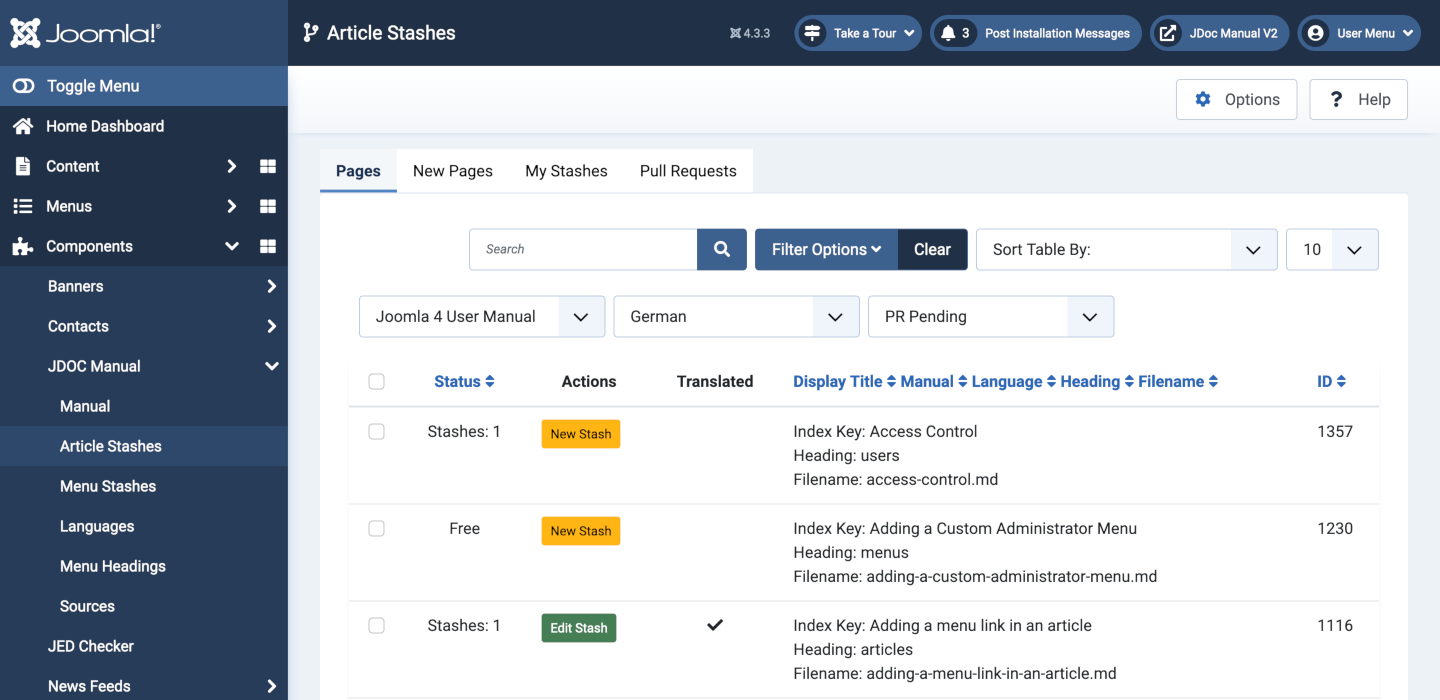
The stash copy is stored in the database until it is deleted or committed and merged into the source. That allows you to come back to make changes over a period until you are satisfied with the revised content.
If you already have a stash copy of an article there will be a green Edit Stash button.
Otherwise there will be a yellow New Stash button. When you create a new stash
the original markdown file will be copied for you to work on.
The New button in the Toolbar, only available when the default language is selected, is used to
create a completely new article in the default language. It works a little differently and only appears
in the New Pages tab. More on that later.
Select the New Stash or Edit Stash button.
The Article Edit Form
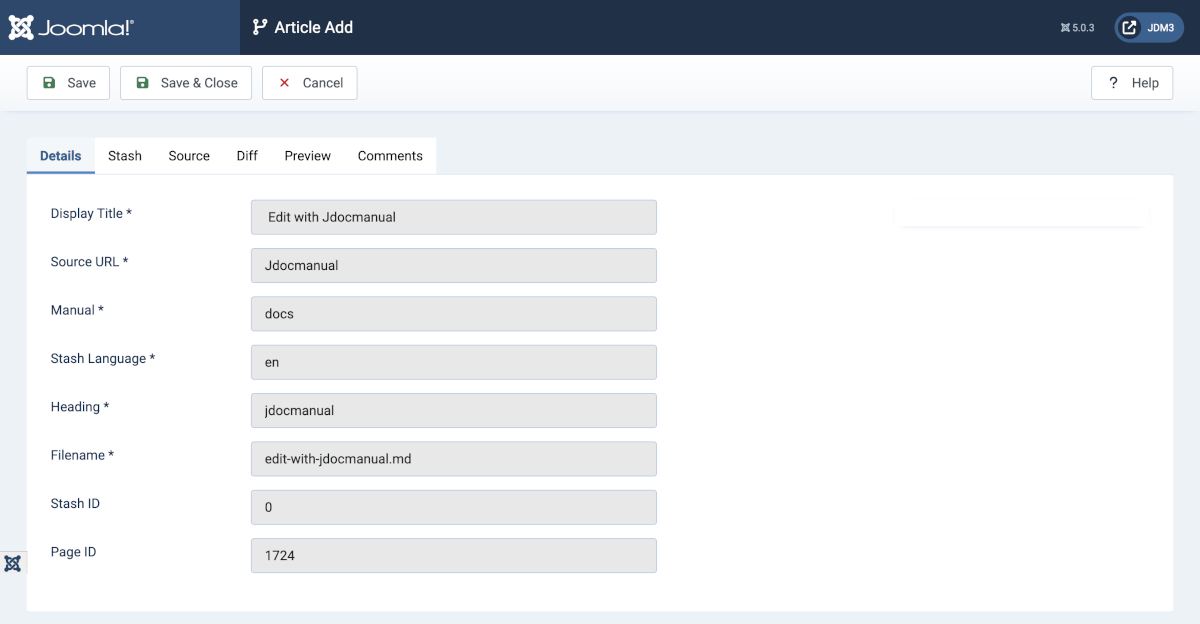
The Article Edit form shows Article Add in the title bar for a new stash. It
changes to Article Edit after saving. The Details tab is all read
only data except for a new article in the default language. On creating a new stash in
German the Display Title will be in the default language. If a translation already
exists it will be whatever the previous translator set it to.
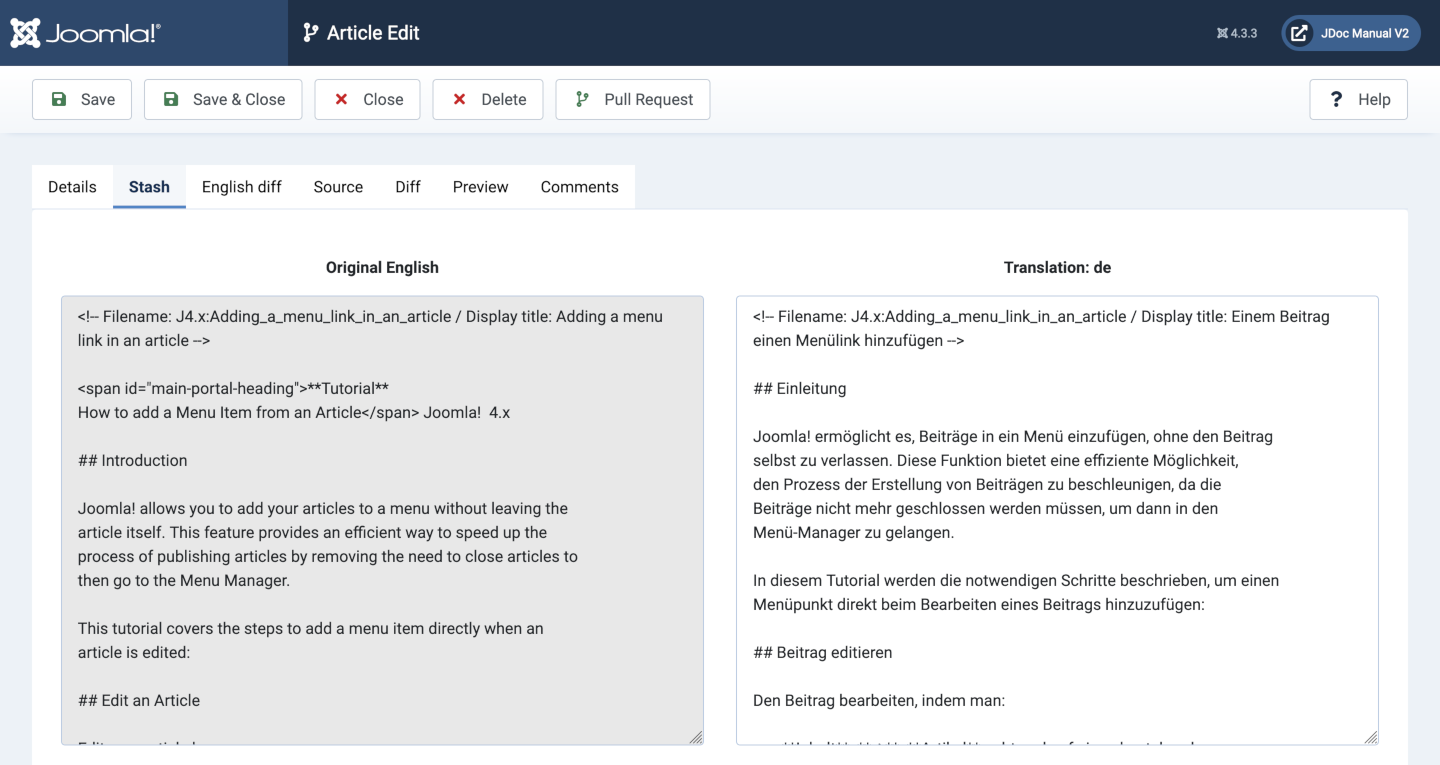
The Stash tab shows the modified text. For a translation the the default language
and translated texts are displayed side by side.
Note the first lines contain metadata in JSON format embedded in an HTML comment. This is important as it used to set the article Display title when building the HTML for article display.
The following illustration shows a German translation with a translated article title.
The English diff tab shows the difference between the last two committed versions in the default language. This is intended to help the translator see what has changed in the the default language source. This tab is not displayed if the selected language is the default language.
The Source tab shows a read only view of the source markdown file.
The Diff tab shows the difference between the Stash and the Source. So before
any changes are made this tab is empty - but there is an Identical message.
The Preview tab shows a HTML conversion of the stash showing what the end users will see.
The Comments tab has a field to enter a Commit Message and a field to
enter Comments. These fields can be filled in by either the user who created
the stash or whoever commits the stash. In some cases a committer may decline
to commit until some correction is made. That can be indicated here.
Commit a Stash
In a communal environment it is expected that there will be two User Groups, one allowed to create or edit articles and another allowed to publish articles. Of course an individual user may belong to both groups.
When a stash owner is satisfied with the text, a pull request is made by
selecting the Pull Request button in the Toolbar. Up to that point a
Publisher is not aware of a stash created by another user. After that point
the Pull Request appears in the list in the Pull Requests tab of the list form.
From time to time a Publisher will consult the list of Pull Requests and open
the Edit Stash form. It is the same form seen by the stash owner except that
it has a Commit button in the Toolbar. If the Publisher is satisfied with
the stash, a click on the button causes creation of a git branch followed by
staging and committing the revised content. All in a single operation.
New Articles
A new article can only be created in the default language via the New button in the Title bar, only present when the default language is selected in the Article Stashes list.